How to book onboarding calls from your support chat
How to book onboarding and support calls without leaving the chat: when a call beats messages, how in-chat booking works, reminders, and what to do on the call.
On this page
- When should support offer a call instead of chat?
- How does booking a call inside the chat work?
- When should you send an instant meeting link instead?
- How do you set up meeting types for support and onboarding?
- How do you reduce no-shows for support calls?
- How do you prepare for a support call?
- Who on your team should hear about new bookings?
- What should you do on an onboarding call?
- Should you record support calls?
- How do you decide which merchants get a call?
- How do you turn calls into product and help center improvements?
- How is in-chat booking different from Calendly?
- Common questions about booking calls from support chat
- Booking calls from support chat, in seven steps
To book onboarding calls from your support chat, send the merchant a booking card inside the conversation so they can pick a time without leaving the chat, or send a live meeting link when you want to talk right now. Offer a call when a problem is hard to explain in writing, the merchant is stuck on setup, or the conversation is going in circles, and keep it short: fix the problem, then write down what you learned. Pasting a link to a separate booking page also works, but it sends the merchant out of the conversation at the moment you most want them in it.
This guide covers when a call beats a chat, how in-chat booking works, how to reduce no-shows, what to do on the call and how to use what you learn.
When should support offer a call instead of chat?
Support should offer a call when writing is slowing the problem down. Most questions are faster in chat, but some are much faster spoken. Offer a call when:
- The merchant cannot describe the problem, such as “it’s not working and I don’t know why.”
- The conversation has gone three or more replies each way without getting closer to a fix.
- Setup involves several screens, such as a theme, app settings and a third-party tool together.
- The merchant is frustrated, and a voice will calm things faster than another written reply.
- There is a lot at stake, such as a merchant on a high plan, a large store going live, or someone deciding whether to keep the app.
Do not offer calls by default. A call costs your team more time than a message, and many merchants prefer to write. Offer one when it will clearly save time for both of you.
How does booking a call inside the chat work?
In-app meeting scheduling lets a customer book a call without leaving your product or chat widget, and the booking stays linked to the support thread, so nobody asks the customer to repeat themselves. It works in four steps:
- The agent sends a booking card from the message composer.
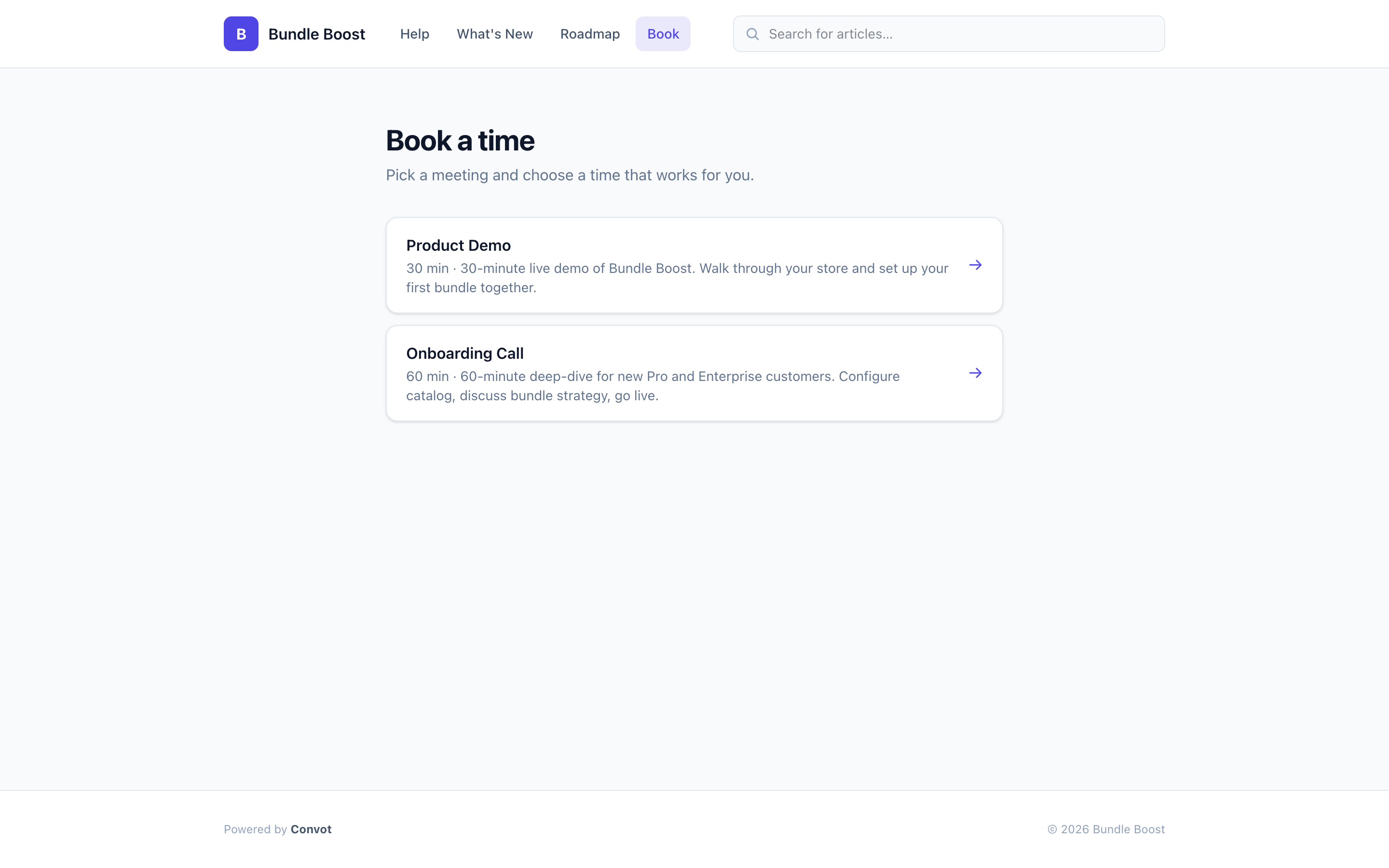
- The merchant opens it in the widget, sees the meeting name, length and description, and picks a time slot.
- The merchant enters their details and confirms.
- The confirmation appears in the same conversation, and both sides get a confirmation email.
In Convot, the agent picks which meeting type to offer, such as a 30-minute onboarding call. The booking is linked to the conversation and listed in the Bookings tab, where your team can reschedule, cancel or resend the confirmation. Each booking also has its own manage link, so the merchant can reschedule or cancel without writing in.
Compared with pasting a link to a separate booking page, the in-chat card keeps the booking attached to the conversation, so whoever takes the call can read the thread first.
When should you send an instant meeting link instead?
Send an instant meeting link when you want to talk now, not later. A booking card schedules a call for the future; an instant link starts one immediately.
| Booking card | Instant meeting link | |
|---|---|---|
| Best for | The merchant picks a time later | Getting on a call right now |
| Time slot | Chosen from your availability | None |
| What is sent | An interactive card | A Google Meet link as a message |
In Convot, the instant link comes from the same composer button and uses your connected Google Calendar, so it only appears once a calendar is connected. Merchants do not need a Google account to join.
How do you set up meeting types for support and onboarding?
Set up a few meeting types, each for one kind of call, so merchants book the right length and your team gets the right context. Here is an example set of three, which you can adapt:
| Meeting type | Example length | Use it for |
|---|---|---|
| Onboarding call | 30 minutes | New merchants setting up the app |
| Troubleshooting call | 15 minutes | A specific problem that is hard to explain in writing |
| Account review | 30 minutes | Merchants on higher plans, or deciding whether to upgrade |
For each type, set:
- Duration and buffers, so calls do not run back to back.
- Advance notice, so nobody books a call that starts in five minutes.
- Custom questions, such as the store URL and what the merchant wants help with.
- Which apps it appears for, if you run more than one app.
Set your team’s working hours, time zone and days off once, and every meeting type uses them. In Convot, the booking card uses your organization’s availability, and Google Meet links are created automatically once Google Calendar is connected.
How do you reduce no-shows for support calls?
To reduce no-shows for customer calls, send a reminder before the call with the meeting link and a reschedule link, keep the call to 15 or 30 minutes, and ask one question at booking, such as what the merchant wants fixed, so the call feels worth keeping. If someone still misses it, reply in the same chat with a new booking card while the problem is fresh.
| Step | What to do | Why it helps |
|---|---|---|
| At booking | Ask what the merchant wants fixed | The call has a clear purpose for both sides |
| Before the call | Send a reminder with the link and a reschedule option | Merchants who cannot make it move the call instead of skipping |
| After a miss | Send a new booking card in the same chat | The merchant rebooks without starting over |
In Convot, reminders are set per meeting type, from 15 minutes to 1 day before, and include the meeting details, the Meet link and links to reschedule or cancel. Every booking also has a manage link, so moving a call never needs a message to your team.
How do you prepare for a support call?
Prepare for a support call by reading the whole conversation, checking the merchant’s setup and knowing what you want to reach by the end. Five minutes of preparation saves the merchant from repeating themselves, which is often what frustrated them in the first place.
A short checklist before each call:
- Read the full thread, including anything the merchant tried already.
- Look at their store or account, if you have access, so you can see the problem before they describe it.
- Check the answers to your booking questions, such as the store URL and what they want help with.
- Decide the outcome, such as “the widget is live on their store” or “the sync runs without errors.”
Because the in-chat booking is linked to the conversation, the agent taking the call can open the thread directly instead of searching for it.
Who on your team should hear about new bookings?
The people who will take the calls should hear about new bookings straight away, while routine bookings can stay quiet. Alerting the whole team for every call creates noise; alerting nobody means a high-value call can be missed.
Notify only the people who take the calls, and only for the meeting types that matter. In Convot, each meeting type has its own team notification setting. Turn it on for the calls that matter, such as account reviews for merchants on higher plans, and off for routine troubleshooting slots. Pair a notified meeting type with its own booking link for a separate flow.
What should you do on an onboarding call?
Use an onboarding call to get the merchant to their first real result, not to give a tour. A simple structure for 30 minutes:
- Two minutes on their goal. Ask what they want the app to do for their store.
- Most of the call on setup. Have the merchant share their screen and do the steps themselves, so they can do it again.
- Check the result on their store, such as the widget showing or the first sync completing.
- Agree on the next step, and say how to reach you.
After the call, add a short note to the conversation: what you set up, what is left, and anything that confused the merchant. That note matters more than the call itself for the next person who talks to them. The Shopify app onboarding guide covers where setup usually breaks.
Should you record support calls?
Record support calls only when it helps you improve them, and always tell the merchant first. Recordings help with coaching and with remembering what was agreed, but they are personal data, and consent rules vary by country.
In Convot, recording is an organization-wide setting on paid plans. A notetaker joins booked and instant Google Meet calls as a visible participant named after your organization, and Convot stores the transcript only, not audio or video. Each recording gets a summary, action items, risk flags and a call-quality score out of 100, visible to admins and owners. You can turn action items into follow-up reminders on the linked conversation.
How do you decide which merchants get a call?
Decide which merchants get a call based on how stuck they are and how much is at stake. A simple rule:
- Always offer to merchants who are frustrated, stuck after several messages, or setting up a large store.
- Offer proactively to merchants on your higher plans, and to anyone on a trial who has not reached their first result.
- Point to a help article first for questions with one right answer.
For Shopify apps, Convot can show a merchant’s plan, MRR and lifetime revenue to date beside the conversation, once your server calls Convot.identify with the shop’s myshopify.com domain and a signed shop_hash; without the signature no revenue is attached. Revenue is visible to owners by default, and owners can grant it to admins. That context helps you decide quickly who needs a call this week.
How do you turn calls into product and help center improvements?
Turn calls into improvements by writing down every point where the merchant got stuck, then fixing the cause: a confusing screen, a missing help article or a missing feature. Calls show problems that merchants rarely write down.
Review your call notes each month and look for repeats:
| What you hear | Fix |
|---|---|
| The same setup step confuses several merchants | Rewrite the screen or add an article |
| Merchants expect a feature that does not exist | Add it to your public roadmap |
| Merchants cannot find a setting | Link it from the help center and the app |
The public roadmap guide covers turning repeated requests into a board merchants can vote on.
How is in-chat booking different from Calendly?
A Calendly alternative for support teams is in-chat booking: use it when the call starts from a support conversation and the agent needs the thread open before the call, and keep Calendly when you need routing forms, round-robin or payments at booking.
| In-chat booking (Convot) | Calendly | |
|---|---|---|
| Where the booking lives | On the support conversation | On a separate booking page |
| Booking inside a chat widget | Yes | No |
| Routing forms and round-robin | No | On the Teams plan |
| Payments at booking | No | On Standard and up |
| Free option | Scheduling on the free plan | 1 event type, with Calendly branding |
| Paid price | $49 a month for 1 app and 3 seats, with chat and a help center | Standard $10 per seat a month, Teams $16 |
Calendly is built for scheduling across many teams and uses, with many integrations. Convot’s scheduling sits inside the support tool, next to chat, a help center, changelog, roadmap and status page. The Calendly comparison has the full side-by-side, and the Cal.com comparison covers the open-source option.
Common questions about booking calls from support chat
Can merchants book without leaving the chat? Merchants can book without leaving the chat when you send a booking card: they pick a time inside the widget and the confirmation appears in the conversation.
Which video tool do the calls use? Calls in Convot use Google Meet. Convot creates the link automatically once Google Calendar is connected and puts it in the confirmation and reminder. Zoom and phone are listed as location types but cannot be selected in the meeting type editor yet.
Do merchants get calendar invites and reminders? Merchants get a confirmation email when they book, and a reminder if you turn reminders on for that meeting type, with links to reschedule or cancel.
Is there a public booking page as well? Convot also has a public booking page on your help center domain, where customers can pick a meeting type and book without starting a chat. It is off by default; turn on the Booking section in your app’s public site settings.
Booking calls from support chat, in seven steps
- Create two or three meeting types with clear names and lengths.
- Set your team’s working hours and connect Google Calendar.
- Offer a call when writing is slowing the problem down, not by default.
- Send a booking card in the conversation, or an instant link to talk now.
- Turn on reminders and make rescheduling easy.
- On the call, get the merchant to a real result on their store.
- Write a short note afterwards and fix what confused them.
See scheduling, or start free while you are under $1,000 MRR, with 1 app and 3 seats.
About the author
Tarang Agarwal is the founder of Convot. Convot is built by Sidepanda, a small studio that runs several Shopify apps of its own, including Appointo, Depo and Panda Bundle, and supports all of them from one Convot inbox.
Revenue-aware support for Shopify app teams.
Live chat, help center, and every merchant's MRR, plan, and LTV beside the conversation. Free under $1k MRR.
Start free