Migrating from Crisp to Convot: a step-by-step guide
How to move from Crisp to Convot: what the built-in importer brings over, how to run it, how to swap the widget code, and what to check before switching.
On this page
- How do you switch from Crisp to another help desk?
- What does the Crisp importer bring over?
- What does the Crisp importer not bring over?
- What do you need before you start?
- How do you export conversations from Crisp?
- How do you run the Crisp import?
- What happens if Crisp’s API limits are reached?
- How do you check the imported data?
- How do you replace the Crisp widget with Convot’s?
- What is the Convot equivalent of $crisp.push?
- How do you move the help center to your domain?
- When should you switch over from Crisp?
- Should you tell customers about the switch?
- What changes for your team after moving from Crisp?
- What do you get in Convot that you did not have in Crisp?
- Can you also import from other tools?
- Common questions about migrating from Crisp
- What are the steps to migrate from Crisp?
To migrate from Crisp to Convot, create a Convot account and an app, start the built-in Crisp importer with your Crisp website ID and an API key, let it bring over your contacts, recent conversation history and help center articles, then replace the Crisp script in your app with Convot’s and rename your $crisp.push calls to Convot.push, which accepts Crisp-style set, do and on commands. Run the importer once more right after you switch, so anything that arrived in Crisp in the meantime is picked up. Most of the work is checking, not moving data.
This guide covers what the importer brings over and what it leaves behind, each step of the move, the code changes, and what to check before you turn Crisp off. The general sequence applies to any move off Crisp; the importer and code below are Convot’s.
How do you switch from Crisp to another help desk?
To switch from Crisp to any help desk, do five things in order: bring over contacts, conversations and help articles; rebuild saved replies, working hours and routing; replace the Crisp chat script in your app; move the help center and redirect its old addresses; then run a final sync on the day you switch and keep the old account for a few weeks before cancelling. Most problems in a migration come from skipping the checks between these steps, not from moving the data itself.
What does the Crisp importer bring over?
Convot’s Crisp importer brings over three kinds of data, each into the Convot app you choose:
| Crisp data | What arrives in Convot |
|---|---|
| Contacts | Email, name, phone and custom attributes, matched to existing Convot contacts by email |
| Conversations | The full message thread, timestamps and which operator sent each reply |
| Help center articles | Title, body (converted to Markdown), category and language, with links between articles rewritten |
Crisp operators are matched to your Convot teammates by email, so their replies keep the right attribution. Contacts are shared across all your Convot apps, so a customer who used two of your products ends up with one record.
What does the Crisp importer not bring over?
The importer does not bring over Crisp operator passwords, Crisp billing data or Crisp plugin configurations. It also imports conversations from a recent window rather than your whole history by default: the first run covers conversations from the last 180 days, and the run details page shows exactly how far back the import goes.
If you need older conversations or something that is not listed, ask Convot support before you switch; the importer is updated when there is a clear need. Rebuild settings such as working hours, saved replies, routing and automations by hand in Convot, which is also a good moment to clean them up. Export your Crisp saved replies as a list first, then keep only the ones your team still uses.
What do you need before you start?
Before you start, have four things ready:
- A Convot account, where you are the organization owner. Only the owner can run a migration.
- A Convot app to import into, one per product. The imported data is scoped to that app.
- Your Crisp website ID, from the address bar when you open the workspace in Crisp (
app.crisp.chat/website/<id>/). - A Crisp API key with access to that workspace.
If you run several products on Crisp, create one Convot app for each and run the importer once per Crisp website.
How do you export conversations from Crisp?
To move conversations out of Crisp into Convot, you do not need a manual export file: Convot’s importer reads them directly from Crisp’s API using your website ID and an API key, and copies contacts, conversations from the last 180 days and help center articles. Copy by hand what the importer skips: your saved replies, working hours, routing rules and any chatbot flows you still use. Before you cancel Crisp, compare the importer’s preview counts with what your Crisp inbox shows.
How do you run the Crisp import?
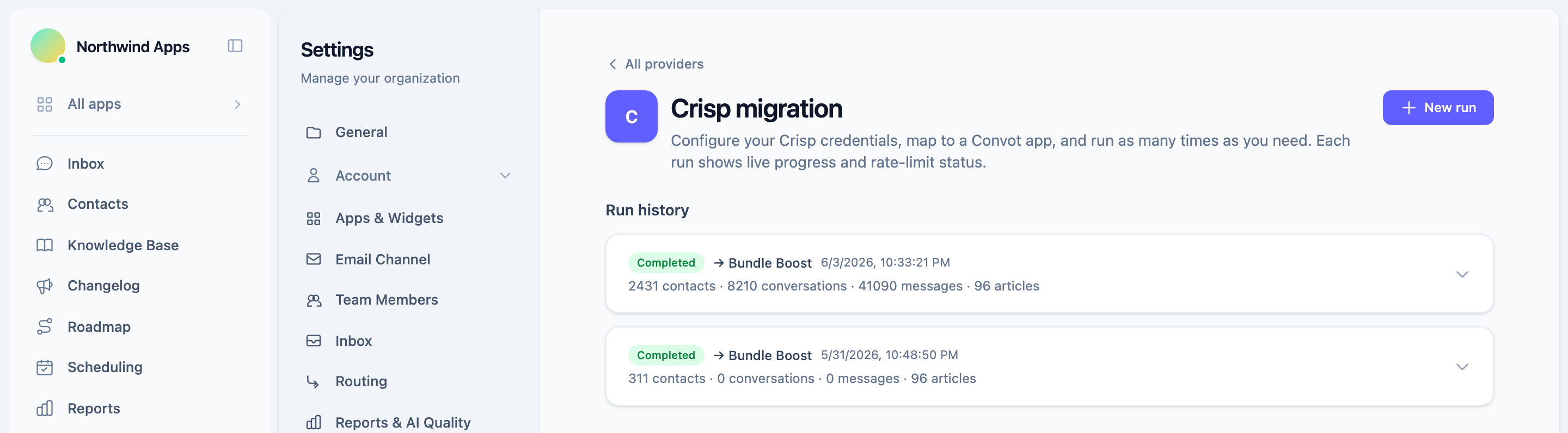
Run the Crisp import from Convot’s migration settings in seven importer steps:
- Go to Settings, Migrations and choose Crisp.
- Click New run.
- Enter your Crisp website ID and API key.
- Select the Convot app to import into.
- Choose what to import: contacts, conversations, help center articles, or all three.
- Click Start import.
- Review the preview Convot runs first, which estimates how many contacts, conversations and articles are in scope; the import then continues in the background.
The import runs in the background, so you can close the page. A run card shows live counts of contacts, conversations, messages and articles imported, with any errors listed underneath.
What happens if Crisp’s API limits are reached?
Convot’s Crisp importer pauses by itself when it reaches Crisp’s API rate limits, shows when it will resume, and continues without any action from you. Large workspaces can take a while for this reason, so start the first import a few days before you plan to switch.
You can cancel a run at any time. Anything already imported is kept, and you can start a new run at any time without creating duplicates.
How do you check the imported data?
Check the imported data against Crisp before you switch, starting with the records your team uses most. A short checklist:
| Check | What to look for |
|---|---|
| Counts | The run card’s totals match the preview, with no unexpected errors listed |
| A few large customers | Their contact details, custom attributes and recent conversations are all there |
| Conversation threads | Messages are in order, with the right teammate shown on each reply |
| Teammate matching | Replies from Crisp operators whose email does not match a Convot teammate are attributed to a system account, so invite every teammate with their Crisp email before the first import |
| Help articles | Formatting, images and links on your ten most-read articles |
| Duplicates | Customers who were in Convot already were merged by email, not duplicated |
If contacts or articles look wrong, fix the cause and run the import again; re-runs update existing records instead of duplicating them. Repeat runs only re-fetch conversations active since the last import, so add teammates before the first run rather than relying on a re-run to fix attribution on older threads.
How do you replace the Crisp widget with Convot’s?
Replace the Crisp chat widget by removing Crisp’s script from your app or site and adding Convot’s snippet, which you copy from your app’s Setup page:
<script>
  window.Convot = { app_id: "app_YOUR_KEY_HERE", origin: "https://app.convot.io" };
</script>
<script async src="https://app.convot.io/widget-loader.js"></script>
What is the Convot equivalent of $crisp.push?
The Convot equivalent of $crisp.push is Convot.push. If your code calls Crisp’s JavaScript API, rename $crisp.push to Convot.push. Convot’s push accepts Crisp-style set, do and on commands with the same keys, such as user:email, session:data and chat:open. To read a value, call Convot.get() instead of push(["get", ...]). One difference: pass the value directly, not wrapped in an extra array as Crisp does.
| Crisp | Convot |
|---|---|
$crisp.push(["set", "user:email", [email]]) | Convot.push(["set", "user:email", email]) |
$crisp.push(["set", "session:data", [[["plan", "pro"]]]]) | Convot.push(["set", "session:data", { plan: "pro" }]) |
$crisp.push(["do", "chat:open"]) | Convot.push(["do", "chat:open"]) |
$crisp.push(["on", "chat:opened", handler]) | Convot.push(["on", "chat:opened", handler]) |
Test each call you use on a staging page before switching, especially any event handlers. For signed-in users, also add Convot’s own Convot.identify call with a server-side signature, so conversations attach to the right customer; the live chat setup guide shows how.
How do you move the help center to your domain?
Move the help center by importing the articles, checking them, and pointing your help subdomain at Convot. Every Convot app has a help center at an address on convot.help, and you can connect your own subdomain, such as help.yourapp.com, with a CNAME and a TXT record; the certificate is issued automatically.
Check the imported articles before you switch the domain: Crisp’s HTML is converted to Markdown, so look over tables, embeds and images on your most-read articles. If you change the help center address, set up redirects from the old article URLs where you can, so links in old emails and search results still work.
When should you switch over from Crisp?
Switch over when the imported data is checked, the new widget works on a staging page, and the team knows the new inbox. A safe sequence:
- Run the first import a few days ahead.
- Set up the inbox: teammates, working hours, saved replies and the away message.
- Test the widget and any
Convot.pushcalls on staging. - Pick a quiet time to switch the live widget.
- Run the importer again right after switching. Repeat runs only fetch conversations active since the last import, with a short overlap, and update existing records instead of creating duplicates.
- Keep your Crisp account for a few weeks, ideally on a lower plan, in case you need to look something up, then cancel.
Should you tell customers about the switch?
Customers rarely need an announcement, because the chat widget stays in the same place and their history comes with them. Tell them only what affects them:
- If the help center address changes, redirect the old URLs and update links in your app and emails.
- If your support email address changes, set up forwarding from the old address for a few months.
- If you add new things, such as a public roadmap or status page, mention them in your changelog, because they are useful to customers.
Keep the widget’s look close to the old one at first, so returning customers recognise it, and change branding later if you want to. Set the widget’s colour, launcher position and greeting before you switch, and check them on a phone as well as a desktop, since many customers open chat on mobile.
What changes for your team after moving from Crisp?
Your team works in one shared inbox, as in Crisp, with each product’s conversations labelled by app. Agents reply from the web app or the Convot iOS and Android apps, and can be limited to specific apps.
Imported Crisp conversations are treated as history: they are not graded by AI quality grading, and if an imported conversation continues live, it is graded from then on. Tell your team which settings were rebuilt rather than migrated, so nobody looks for an automation that no longer exists.
What do you get in Convot that you did not have in Crisp?
Beyond the same chat, inbox and help center, each Convot app also gets a changelog, a public roadmap with voting and a status page with uptime monitoring, plus in-chat scheduling, all in one plan. For Shopify apps, Convot can show each merchant’s plan, MRR and lifetime revenue to date beside the conversation once your app identifies the shop with a signed shop_hash, and can flag uninstalls in the conversation with an AI verdict on whether support played a part.
Pricing is by how many apps you run: free under $1,000 MRR with 1 app and 3 seats, then from $49 a month. The Crisp comparison covers features and prices side by side, the guide to Crisp alternatives for Shopify app teams compares other options, and Crisp vs Intercom for Shopify app developers compares the two most common choices.
Can you also import from other tools?
Convot also imports roadmap posts, votes, comments and changelog entries from Sleekplan. For Intercom, Zendesk and Freshdesk there is no self-serve importer; the Convot team runs those migrations for you, free, keeping the original dates on imported conversations.
Common questions about migrating from Crisp
How long does a Crisp migration take? The import itself runs in the background and depends on the size of the workspace and Crisp’s API limits. Plan a few days between the first import and the switch, so you have time to check data and test the widget.
Will I lose conversation history? The first import brings over conversations from the last 180 days by default, with original timestamps. Ask Convot support before switching if you need older history.
Do I need to change my code?
You replace the Crisp script with Convot’s snippet and rename $crisp.push calls to Convot.push; the common set, do and on commands use the same keys, with values passed directly. Signed-in users also need a Convot.identify call.
Can I move several products from Crisp at once? Each Crisp website imports into one Convot app. Create a Convot app for each product and run the importer once per website; contacts are shared across your apps, so a customer of two products ends up with one record, and every conversation lands in the same shared inbox.
What happens to Crisp chatbots and automations? Crisp chatbot scenarios and plugin settings are not imported. Rebuild what you still need in Convot: saved replies for common answers, working hours and an away message, routing, and, on paid plans, the Cove AI agent, which answers from your help center rather than a scripted flow.
Can I run the import more than once? Convot’s Crisp importer is safe to re-run: existing records are updated rather than duplicated, and repeat runs only fetch recent activity.
What are the steps to migrate from Crisp?
- Create a Convot account and one app per product.
- Find your Crisp website ID and create an API key.
- Run the import from Settings, Migrations, and check the preview.
- Check imported contacts, conversations and articles.
- Swap the widget and rename
$crisp.pushtoConvot.push; addConvot.identify. - Switch at a quiet time and run the importer once more.
- Keep your Crisp account for a few weeks, then cancel.
See the migration guide, or start free.
About the author
Tarang Agarwal is the founder of Convot. Convot is built by Sidepanda, a small studio that runs several Shopify apps of its own, including Appointo, Depo and Panda Bundle, and supports all of them from one Convot inbox.
Revenue-aware support for Shopify app teams.
Live chat, help center, and every merchant's MRR, plan, and LTV beside the conversation. Free under $1k MRR.
Start free