Help Desk Migration: A Practical Playbook for 2026
Plan your help desk migration with a practical playbook: audit, data mapping, testing, cutover, and rollback, plus knowledge-base tips for small software teams.
On this page
- Table of Contents
- Why Small Software Teams Are Switching Help Desks in 2026
- The Pre-Migration Audit You Should Not Skip
- What Must Move on Day One and What Can Stay Archived
- Mapping Fields, Tags, and Workflows Between Two Systems
- Testing and Verifying the Import Before Cutover
- Cutover Day, Parallel Validation, and the Rollback Decision
- The Hidden Risk Nobody Talks About, Your Knowledge Base
Meta description: A practical help desk migration playbook for small software teams, covering data scope, field mapping, testing, cutover, and knowledge-base risks.
Your support inbox is open, but the system around it has become a problem. The bill keeps rising, agents switch between tools to understand a customer, and a merchant’s plan or billing history is nowhere near the conversation. You’re considering a move. The hard part isn’t clicking export. It’s keeping support working while the team, data, and habits change.
A good help desk migration is a service transition, not a software installation. Decide what agents need on day one, what history can remain accessible in the old system, and which workflows must keep working while customers continue to write in.
Table of Contents
- Why Small Software Teams Are Switching Help Desks in 2026
- The Pre-Migration Audit You Should Not Skip
- What Must Move on Day One and What Can Stay Archived
- Mapping Fields, Tags, and Workflows Between Two Systems
- Testing and Verifying the Import Before Cutover
- Cutover Day, Parallel Validation, and the Rollback Decision
- The Hidden Risk Nobody Talks About, Your Knowledge Base
Why Small Software Teams Are Switching Help Desks in 2026
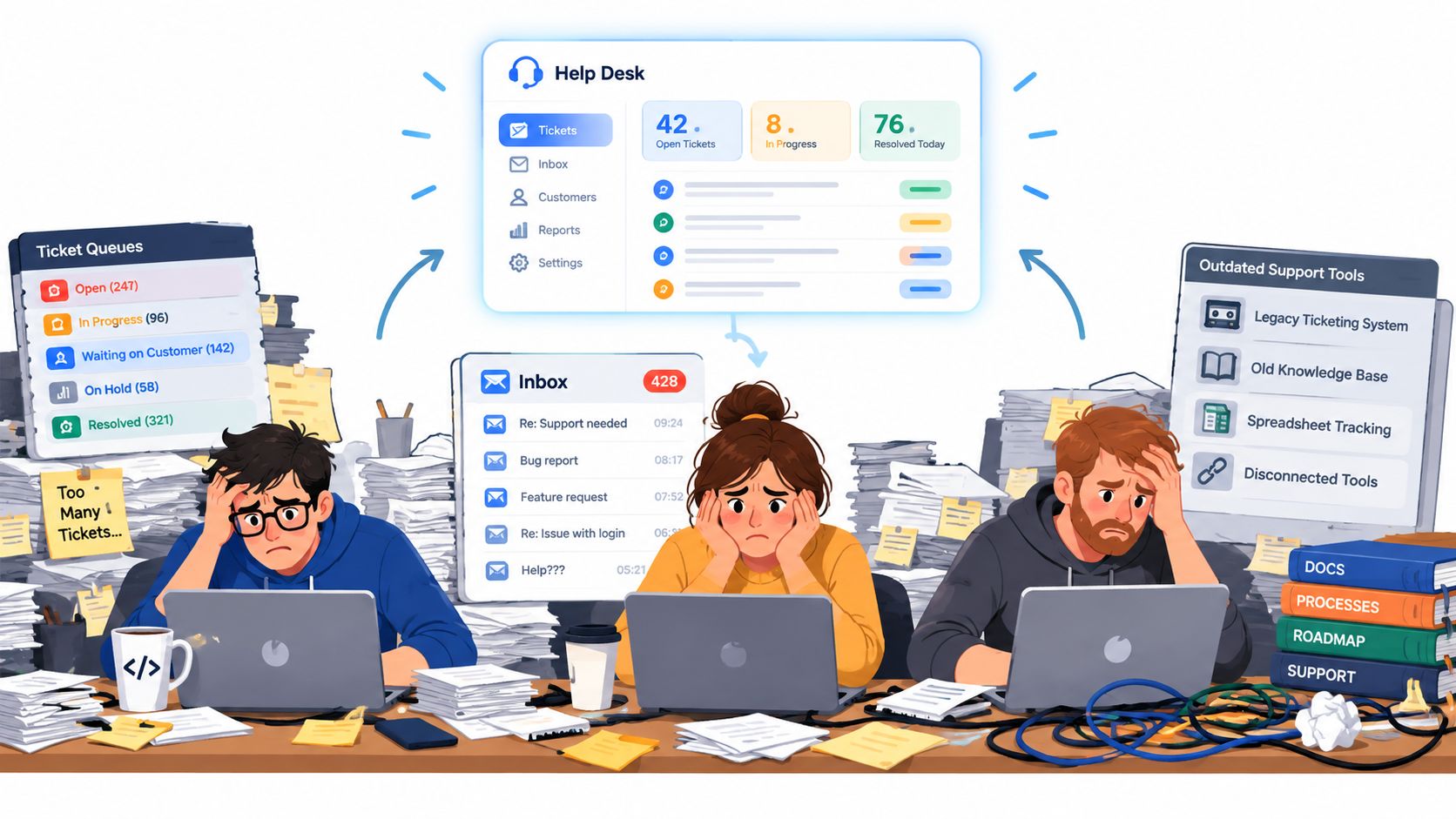
A small software team usually starts thinking seriously about a move after a specific frustration repeats. The bill grows with each new seat. Supporting more than one app means paying for another workspace or subscription. Or agents lack an essential piece of context, such as the Shopify merchant’s current plan, when they open a conversation.
For Shopify app developers, billing context isn’t decoration. Shopify’s Partner API can return a shop’s active subscription, billing cycle, subscription items, pricing, usage, discounts, and pending updates. That context can help an agent distinguish a trial from a paid subscription or understand which plan the merchant is using. Shopify documents the subscription data available through its Partner API.
Before touching an export, write down the three jobs the new system has to do better than the old one. Make each job testable, such as “an agent can see the merchant’s plan beside a ticket” or “one inbox supports our apps without separate workspaces.” As the founder publishing this guide, I’d put it this way:
Write down the three jobs the new system must do better than the old one. Don’t migrate until you can test those jobs.
That’s also why this guide stays vendor-neutral. A move from one platform to another depends on your records, integrations, workflows, and tolerance for downtime, not on a generic feature list. For more on the planning decisions behind a legacy-system move, see CEFCore’s guide to 2026 data migration strategies.
If you’re comparing options before planning a move, this overview of Zendesk alternatives for small teams can help frame the tool decision. For specific vendor moves, use the dedicated guides on moving from Crisp step by step and moving from Intercom to Zendesk while keeping history.
The Pre-Migration Audit You Should Not Skip
The audit is the part of a help desk migration that prevents a manageable project from turning into a surprise cleanup job. Make one shared inventory before anyone clicks export. It should name the source objects, who owns each one, whether they need to move, and how the new system will use them.
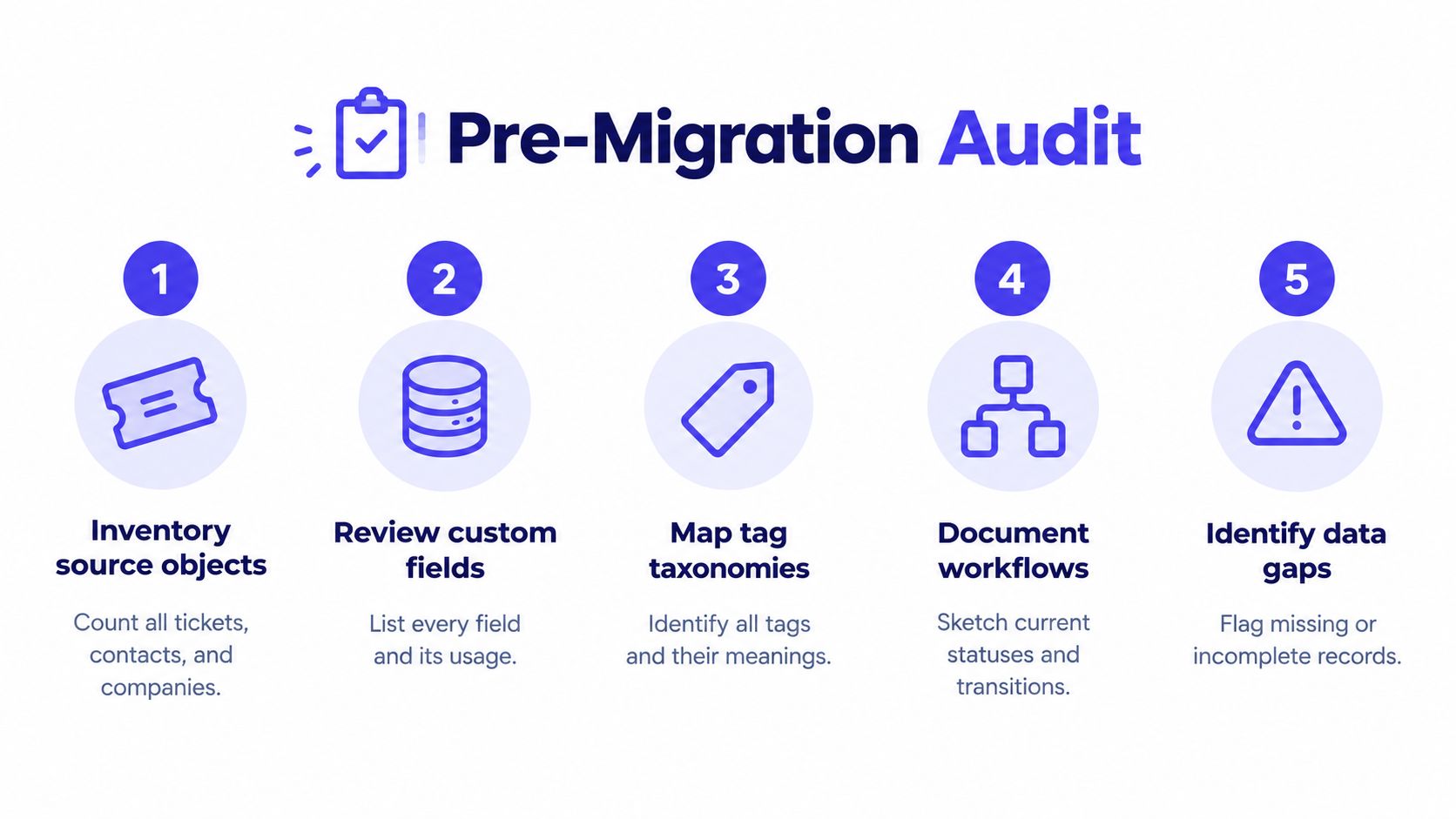
Start with the records agents and customers touch: tickets, contacts, companies, conversations, attachments, tags, and custom fields. Then document the operating layer: macros, saved views, business hours, service-level agreements (SLAs), authentication, permissions, and integrations. A ticket export won’t capture how a webhook creates work, how a notification is triggered, or which team owns an escalation.
Profile the data before mapping it
Use a spreadsheet to flag null fields, duplicate identities, malformed timestamps, unsupported encodings, and tickets whose relationships to users or companies are missing. Don’t assume a field is clean because it has a value. For example, a company field filled with inconsistent names can make reports unreliable even when every ticket imported successfully.
Give each object a decision and an owner. When a field’s purpose is unclear, ask the people who use it before inventing a meaning for the target system. If nobody can explain why a tag or macro exists, mark it for review rather than carrying it over automatically.
Decide what happens to each workflow
Classify every workflow as must-preserve, redesign, or retire. A must-preserve workflow might route billing problems to the right person. A redesign might replace a tangle of old triggers with one clearer rule. Retire rules that no longer match how the team works.
Record these decisions in a one-page scope document. It gives the team a reference when someone asks to add another migration task halfway through the project. A short video can also help stakeholders understand how to structure an audit before export.
What Must Move on Day One and What Can Stay Archived
A small team doesn’t need to bring every record into the new inbox on day one. It needs enough reliable context to answer live customers, keep ownership clear, and avoid breaking active work. Everything else can be considered separately, including whether it should be searchable in the new system at all.
| Data type | Move on day one | Keep archived |
|---|---|---|
| Conversations and tickets | Active conversations and open tickets | Old closed tickets that agents rarely need |
| Customer identity | Essential contact and company details | Duplicates or outdated records pending review |
| Shopify billing context | Current plan and relevant billing details | Older billing history, if it’s accessible elsewhere |
| Help center content | Reviewed, high-value articles for current products | Outdated or product-specific documentation |
| Macros and workflows | Rules and replies needed for live support | Retired macros and obsolete automations |
| Attachments and notes | Files and private notes tied to active cases | Older material kept for reference |
The key test is practical: will an agent need this record to handle a customer’s current issue? Active conversations, identity, and necessary account context generally belong in the day-one set. Older closed tickets can remain in read-only storage if agents can retrieve them when needed.
Keep history separate from authority
Historical replies explain what happened in a past conversation. They aren’t automatically accurate documentation for the current product. That distinction matters even more if the new help desk includes AI or search that can surface old content to agents or customers.
A narrow import reduces noise and gives the team space to validate the information customers will see. It also prevents stale macros, outdated instructions, or product-specific replies from being mistaken for current guidance. Archive doesn’t have to mean delete. Keep a clear retrieval path, name an owner for the archive, and agree on when an agent should consult it.
The decision can be uncomfortable when a teammate wants every record moved “just in case.” Ask what they need the record for, how they’ll find it, and whether it’s trustworthy. If the answer is uncertain, preserve access without making that content part of the new system’s everyday search.
Mapping Fields, Tags, and Workflows Between Two Systems
Field mapping is a translation document, not a matching exercise. The source and destination may use different words for similar ideas, or the same word for different behavior. Decide what every value means before the import starts, and write down the transformation rule.
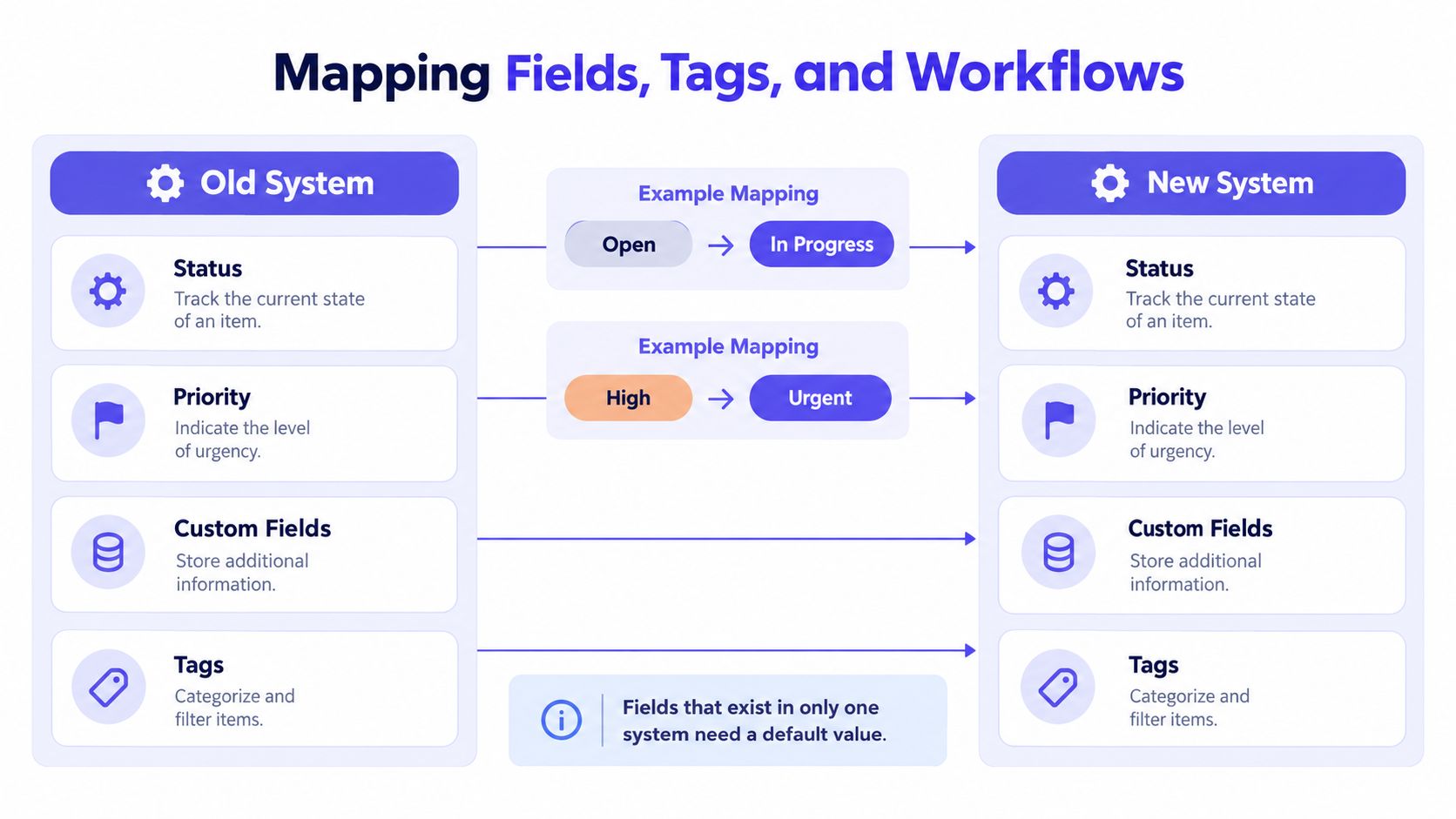
For example, one system might label an active ticket “Open,” while the destination uses “In Progress.” Those values might be equivalent, but confirm how each system treats assignment, customer replies, and resolution before mapping them. The same applies to priority: “High” could map to “Urgent,” but only if the teams use those labels in the same way.
Write down the transformation rules
For each field, record its source name, destination name, type, allowed values, and what happens when the source value is blank or unsupported. A custom field that exists in only one system needs a deliberate decision. Preserve its value in a destination custom field or a sidecar record, or document why it’s safe to leave behind. Don’t discard it without notice.
Tags need the same care. One team may use several tags for a single idea, while the destination expects a cleaner taxonomy. Define which tags merge, which remain distinct, and which are retired. These system integration tips for SaaS founders offer useful context for thinking about dependencies beyond the help desk itself.
Order matters because records refer to one another. Migrate users and companies before tickets, then conversations and attachments, followed by events and reporting metadata. If tickets arrive before their customer records, you may end up with broken relationships that are hard to detect from a simple count.
Migration methods vary. Some platforms offer one-click imports for a specific source, while other moves require a manual, team-assisted process. Convot’s help desk integrations overview describes its one-click Crisp import alongside free, founder-assisted migrations from Intercom, Zendesk, and Freshdesk. Whatever the method, ask how the migration handles custom fields, notes, attachments, and records that don’t map cleanly.
Testing and Verifying the Import Before Cutover
A completed import isn’t proof that the migration worked. The ticket count can match while values have disappeared, default settings have changed, or tickets have lost their connection to the right customer. Test the data the way agents will use it.
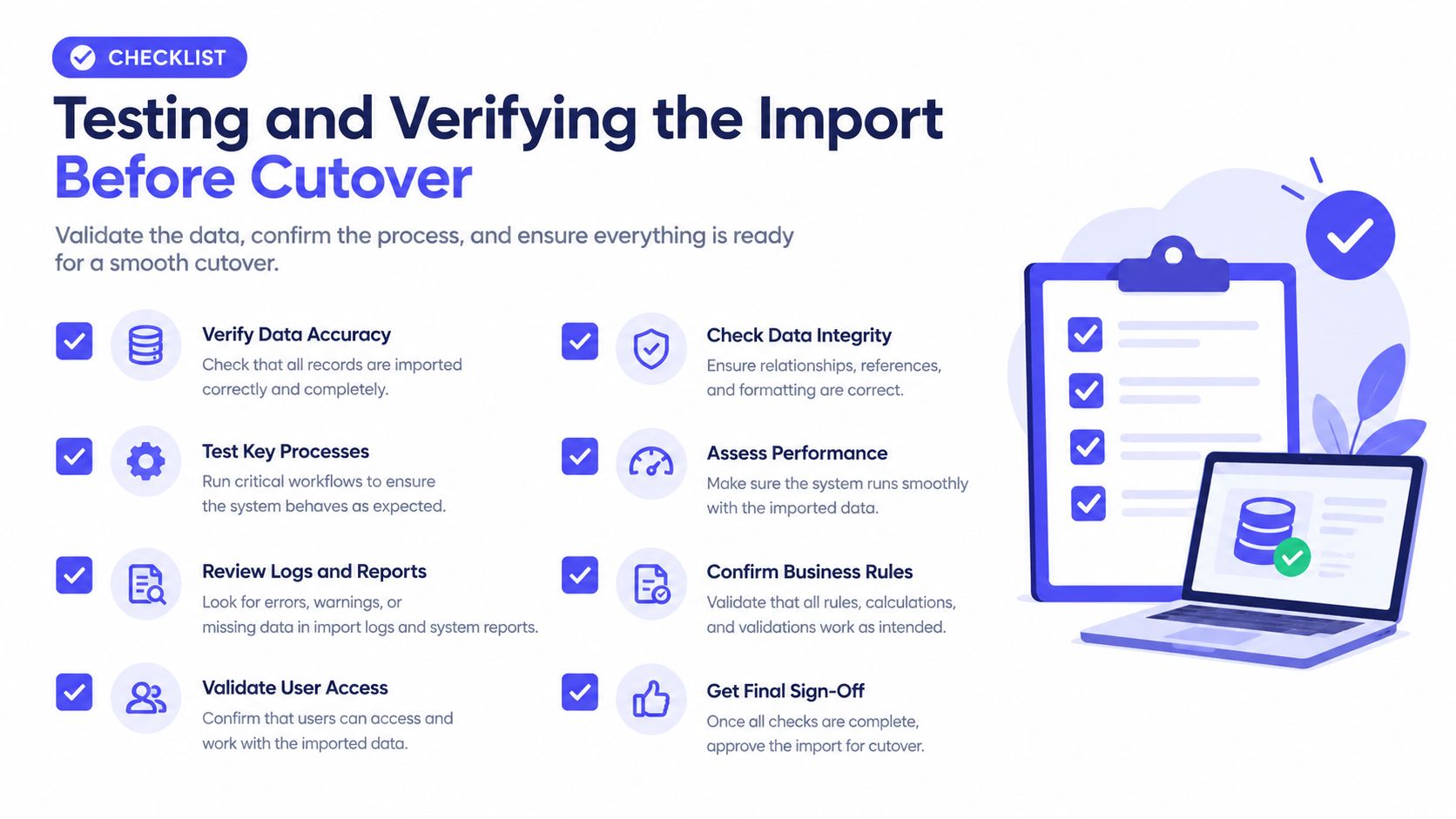
Start with a representative pilot in a staging environment. Include ordinary tickets and awkward cases, such as tickets with attachments, private notes, unusual statuses, and custom fields. Have agents work through common scenarios rather than reviewing records as a passive sample. They’ll find problems that a data-only check can miss.
Reconcile more than record counts
After the pilot, run a full dry run and compare source and destination. Track record counts, import errors, attachment totals, broken relationships, duplicate identities, and whether key ticket types read correctly. Check a sample of customer histories from different workflows, not just the easiest records to move.
Oracle recommends profiling data and running a repeatable, end-to-end process with data-quality controls. Its migration guidance reports that 83% of data-migration projects fail or exceed budget or schedule, with average cost overruns of 30% and time overruns of 41% (Oracle’s data-migration guidance). Treat those figures as a reason to build validation into the project, not as a prediction of what your team will experience.
Before go-live, agree on acceptance gates with the team or migration provider:
- Mapping defects: No unresolved critical mapping issues.
- Permissions: Every role can access the right records and functions.
- SLA behavior: Calculations and escalation paths work as expected.
- Integrations: Test a webhook or API connection for each external system.
- Relationships: Check that sampled tickets remain attached to the right customer or company.
- Attachments: Open transferred files from the destination system.
Give the checklist to whoever is running the migration. If a test fails, record the defect, owner, and retest result. Don’t waive a critical issue because the import itself finished.
Cutover Day, Parallel Validation, and the Rollback Decision
Cutover should have a named owner, a freeze window, and a rollback decision written down before go-live morning. Switching the inbox without those decisions turns small failures into arguments about who should act while customers are waiting.
For higher-volume teams, parallel validation can reduce the risk. Keep agents working in the old system while the new system is checked against live activity, with clear ownership of each conversation. Don’t let two platforms send customer notifications for the same update, and don’t ask agents to reply in both. Define which system is authoritative during the validation period and how incoming messages will be handled.
Brief agents and customers plainly
Tell agents what changes at cutover: where new conversations arrive, where they should reply, how to find archived history, and whom to contact when something looks wrong. A short operating runbook is more useful than a long list of features. Let customers know if they need to use a new support entry point or should expect a different reply path.
Name one person to make the rollback call. Set the conditions in advance, such as a critical routing failure, missing customer history for active cases, or duplicate contact that the team can’t contain. Keep the old system available as a reference while the new one is monitored.
During the first support cycle, compare the new system with a pre-migration baseline. Watch first-response time, resolution time, reopen rate, misrouting rate, backlog age, import corrections, and duplicate customer contact. A change in one metric isn’t automatically proof that the migration caused a problem, but a sharp operational issue should prompt a real investigation. Document what happened and let the rollback owner decide against the agreed gates.
The Hidden Risk Nobody Talks About, Your Knowledge Base
A technically clean import can still make support worse if the new system surfaces obsolete documentation. That risk is easy to miss because teams often treat tickets, articles, and macros as one pile of exportable content. They aren’t equally trustworthy: a historical reply records what someone said, while an article may be presented as current guidance.
The issue matters for teams adopting AI. Gartner reported that 85% of customer-service leaders planned to explore or pilot customer-facing conversational GenAI in 2025, while 61% had a backlog of knowledge-base articles requiring edits (Gartner’s survey findings). If an outdated article becomes searchable or available to an AI agent, the migration can make old advice easier to repeat rather than easier to correct.
Add content checks to the migration scope
For each article, identify an owner and the product or version it applies to. Check for duplicates, update links and redirects for renamed or moved content, and preserve citations that support the advice. Queue questionable articles for review instead of presenting them as approved answers.
Keep a clear boundary between historical conversations and authoritative documentation. An old ticket can help an agent understand a customer’s past issue, but it shouldn’t become a source of truth just because it was imported. If AI answers from team documentation, check whether it cites its sources and has a clear handoff to a human when it’s unsure. A practical guide to building a knowledge base can help teams think through ownership and article quality.
For a specific source migration, use the Crisp migration guide or the guide to moving from Intercom to Zendesk while keeping history. Import methods differ: Crisp imports in one click, while migrations from Intercom, Zendesk, and Freshdesk can be handled manually with the founder. Convot, the publisher, also operates a competing help desk and offers those free manual migrations.
Convot is a help desk for small software teams, with one inbox for multiple apps and Shopify merchant plan and billing context beside conversations. It also offers a one-click Crisp import and founder-assisted manual migrations from Intercom, Zendesk, and Freshdesk. If that matches your migration, visit Convot to review the product and migration options.
Revenue-aware support for Shopify app teams.
Live chat, help center, and every merchant's MRR, plan, and LTV beside the conversation. Free under $1k MRR.
Start free