Third Party Integrations: A Guide for SaaS Support Teams
How SaaS support teams should choose third party integrations: native, API, webhook or middleware, what permissions to allow, and how to keep them working.
On this page
- Key takeaways
- What Does a Disconnected Support Stack Cost?
- What Are Third Party Integrations?
- What Are the Four Types of Integration for Support Teams?
- How Do You Keep Third Party Integrations Secure?
- How Should a Support Team Plan Integrations?
- What Do Third Party Integrations Look Like in Practice?
- FAQ
- From Tool Sprawl to a Unified Support Hub
Third party integrations are connections between your help desk and outside tools such as billing, a CRM, Slack and calendars, so agents see customer context in one screen. Start with native integrations, use APIs for specialized workflows, webhooks for real-time alerts and middleware for multi-app flows, and give each one narrow permissions and a named owner.
Your team probably knows this workflow too well. A customer asks why their renewal failed, whether their plan includes a feature, and if someone can jump on a call today. The agent opens the help desk, then the CRM, then billing, then internal docs, then Slack, then a calendar tool. By the time they answer, the hard part wasn’t the question. It was assembling the context.
That’s why third party integrations matter so much for support teams. They aren’t just technical plumbing. They decide whether an agent can resolve an issue in one screen or has to stitch together a story from six different systems. They also come with real trade-offs. More flexibility often means more permissions, more vendors, and more maintenance.
Key takeaways
- Start native. Built-in integrations for Slack, calendars and billing are the lowest-maintenance place to start.
- Use webhooks for speed, APIs for depth. A webhook says something happened; an API fetches the full record.
- Grant the narrowest scope that works. Over-permissioning is the main security risk of any integration.
- Give every integration an owner. Most integrations fail from neglect, not from setup.
- Judge an integration by the support moment it improves, not by the size of a vendor’s marketplace.
What Does a Disconnected Support Stack Cost?
A disconnected support stack costs time and accuracy. When billing, CRM, product usage and Slack do not share data, agents copy context between tabs by hand, which slows replies, invites wrong assumptions about plans and billing, and makes service depend on which agent knows where to look. Tickets still get answered, so the cost hides in small delays that pile up all day.
An agent needs billing data from Stripe, account notes from the CRM, product usage from your app, and the latest workaround from Slack. None of those tools are broken. They just don’t talk to each other well enough. So the agent becomes the integration layer.
That isn’t a people problem. It’s a systems problem, and support teams feel it first because they work at the point where customer context has to come together fast.
What tab switching really costs
The visible cost is slower replies. The less visible cost is lower-quality judgment.
When agents have to hunt for information, they start making small assumptions. They may answer from memory, miss a billing exception, or fail to notice that a frustrated user is also a high-value account. The issue isn’t just efficiency. It’s accuracy and prioritization.
Practical rule: If your agent has to copy and paste customer data between systems, your stack is creating avoidable risk.
A disconnected stack also creates uneven service. Your experienced agents know where to look. Newer agents don’t. That means customer experience depends too much on tribal knowledge instead of process.
Why support leaders should care early
Third party integrations are the bridge between a pile of useful tools and a working support system. Done well, they reduce context switching, eliminate duplicate work, and give agents enough customer history to act with confidence. Done poorly, they add another layer of operational drag.
Support leads are not choosing whether integrations are useful. You’re choosing which connections deserve to exist, how much access they should get, and whether your team can live with them six months later. Our guide to running SaaS customer support with a small team covers the wider operating model these choices sit inside.
What Are Third Party Integrations?
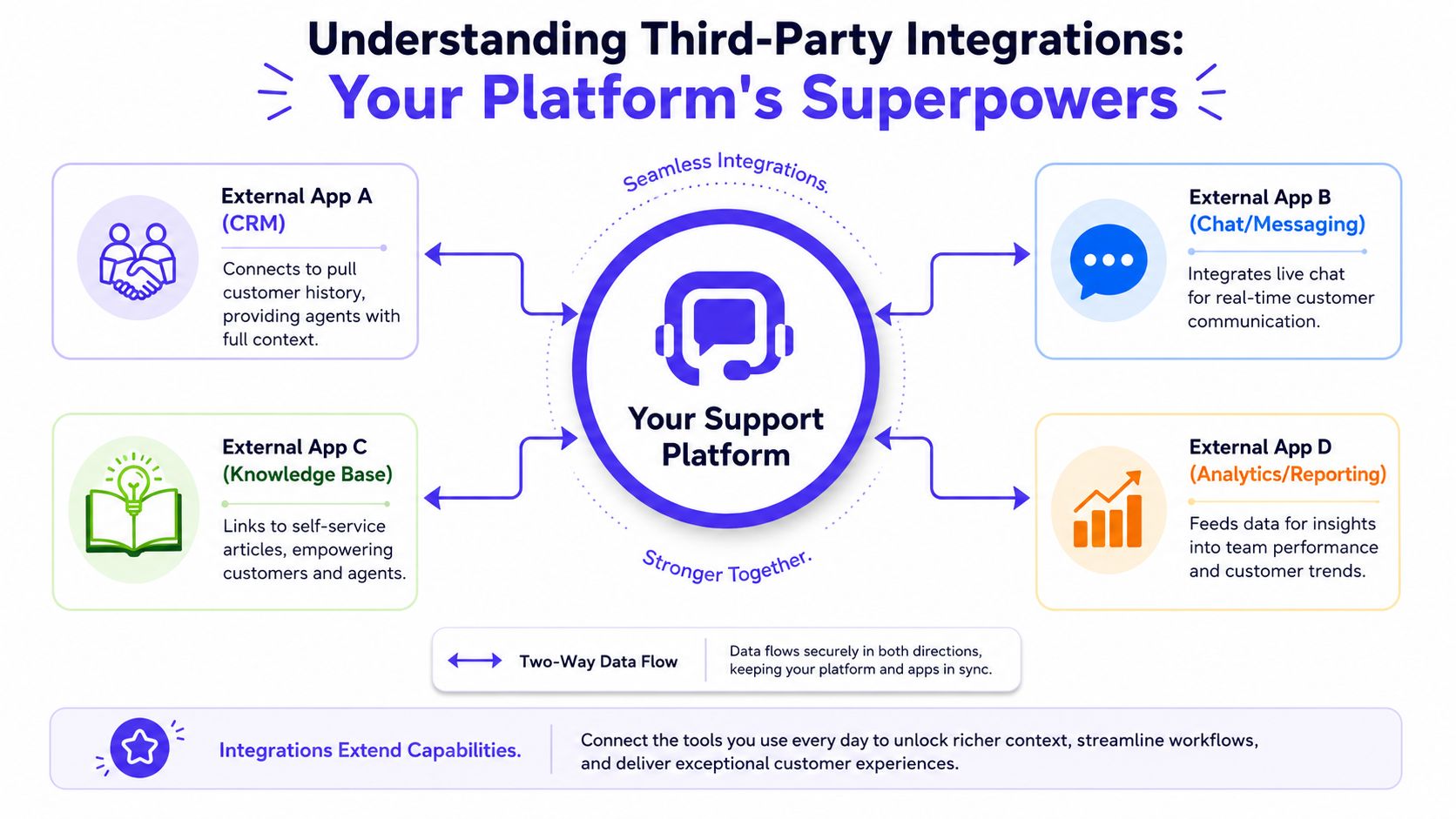
Third party integrations are connections between your support platform and tools you do not build, such as Stripe, a CRM, Slack or Google Calendar. They use APIs to exchange approved data and actions, so an agent can see billing status or alert engineering without leaving the ticket.
Take one ticket. A customer asks whether their plan includes a feature. Without an integration, the agent checks billing in another tab. With one, the plan sits beside the conversation. Each tool holds something valuable, but the help desk only works at scale when those systems exchange information without a person relaying it.
The bridge is the API
Technically, third party integrations rely on APIs, or Application Programming Interfaces. A helpful plain-English definition comes from this overview of SaaS integrations and APIs, which explains that APIs define how software communicates, commonly using JSON or XML over REST or GraphQL to support secure data sharing and workflow synchronization.
For a support lead, the important point is simpler than the terminology. An API is a controlled doorway. It lets one system ask another system for specific information or send an approved action.
Examples make this clearer:
- Customer lookup: Your help desk pulls subscription status from your billing system.
- Conversation sync: A new high-priority ticket creates an alert in Slack.
- Scheduling handoff: An agent books a call from the chat thread and writes the result back to the ticket.
- Reporting flow: Resolution data moves into an analytics tool for team reporting.
If you’re evaluating tools, it helps to review the platform’s available support platform integrations before you commit. A strong integration catalog doesn’t guarantee a good setup, but a weak one usually guarantees workarounds.
An integration is more than a connection
Teams often talk about integrations as if they’re just on or off. In practice, every integration is a bundle of decisions.
It includes:
- Data scope: What information moves between systems.
- Direction: Whether data moves one way or both ways.
- Timing: Whether sync happens instantly, on a schedule, or after a trigger.
- Rules: Which fields map to which records, and what happens when data conflicts.
- Failure handling: What the system does when one side is slow, unavailable, or returns bad data.
A useful integration doesn’t just connect two tools. It reduces effort without creating confusion about where the truth lives.
That last point matters more than most buyers expect. If your support platform shows one plan value and your billing system shows another, the problem isn’t missing data. It’s unclear ownership. Good integrations move data with purpose. Bad ones spread uncertainty faster.
What Are the Four Types of Integration for Support Teams?
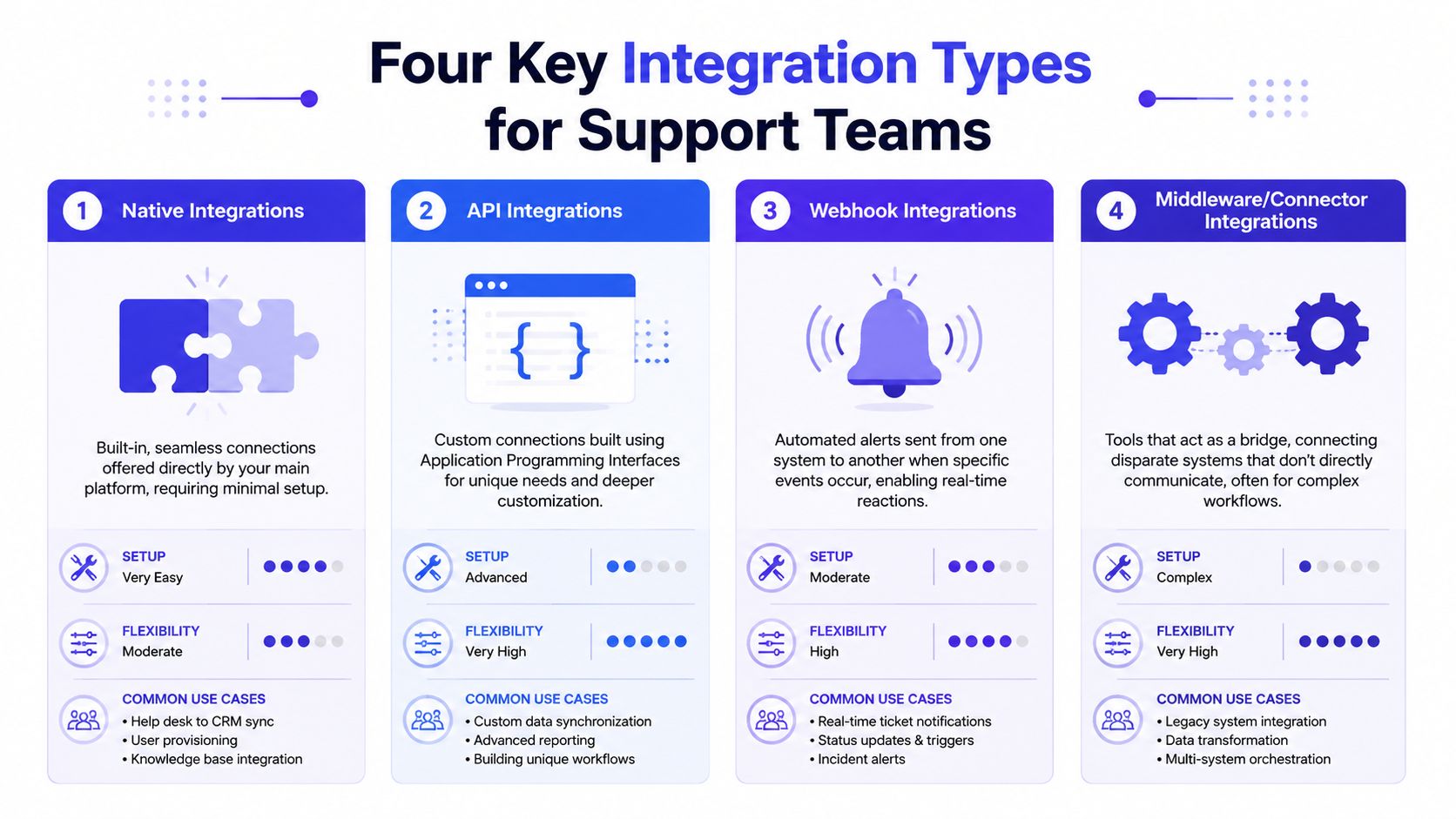
The four types of support integration are native, API, webhook and middleware. Native integrations are built in and take the least effort, API integrations are custom builds, webhooks push real-time event alerts, and middleware such as Zapier or Make bridges tools that do not connect directly. Start native, then move on only when it cannot do the job.
When the wrong pattern is picked, or none at all, the gap shows up for support as manual updates, copied notes, and fragmented customer context. For wider context, this analysis of enterprise data integration adoption looks at how larger companies approach connecting their systems.
A quick way to think about the four types
Native integrations are the easiest place to start. These are built-in connections offered directly by a platform. If your help desk has a ready-made Slack or Google Calendar connection, setup is usually light and maintenance is lower.
The trade-off is control. Native integrations are convenient, but they only support the use cases the vendor chose to support.
API integrations are more flexible. APIs are the right choice when your workflow is specific, your data model is unusual, or you want tighter control over what gets synced.
The cost is effort. Someone has to build, test, and maintain the connection.
Webhooks are event-driven alerts. One system says, “something just happened,” and another system reacts. A webhook is ideal when support needs a fast signal, like sending a message to Slack when a VIP customer opens an urgent ticket.
Webhooks are lightweight, but a payload often carries only the event, not the account history around it, so they work best paired with an API. Verify the sender before acting on one. Convot, for example, sends 9 webhook events, each HMAC-signed with a per-webhook secret, so the receiving system can reject anything that did not come from Convot.
Middleware or connector tools such as Zapier or Make sit between systems and help them exchange data. These are useful when your tools don’t connect neatly on their own or when you need to orchestrate multi-step workflows across several apps.
They can save time up front, but they also introduce another dependency into the stack.
If a workflow is common and stable, native usually wins. If it’s unique and central to your support operation, API work is often worth it.
Integration methods compared
Native integrations are lowest effort and best for standard workflows. API integrations are highest effort and best for specialized ones. Webhooks suit real-time alerts. Middleware suits multi-app flows.
| Integration Type | How it Works | Best For | Effort Level | Example in Convot |
|---|---|---|---|---|
| Native Integration | Built into the product by the vendor | Common support workflows like Slack alerts or calendar syncing | Low | Slack channels per app, Google Calendar with Meet links |
| API Integration | Custom connection using documented endpoints and rules | Specialized workflows, deeper account context, custom reporting | High | REST API and an MCP server |
| Webhook Integration | Sends an event when a trigger occurs | Real-time notifications and simple event-based automation | Low to medium | 9 events, each HMAC-signed |
| Middleware Connector | Uses an external bridge to move data between tools | Multi-app workflows and tools without direct compatibility | Medium | Zapier, fed by the signed webhooks |
A few practical patterns help with decision-making:
- Choose native first when the workflow is standard, the data is low-risk, and you want speed.
- Choose API when precision matters, especially if agents need account-level context inside the ticket.
- Choose webhooks when timing matters more than depth.
- Choose middleware when you’re solving across several systems and don’t want every connection to be custom-built.
The mistake to avoid is choosing on setup ease alone. The better test is what will still be understandable when the owner leaves, the vendor updates its product, or support needs one more field added to the workflow.
How Do You Keep Third Party Integrations Secure?
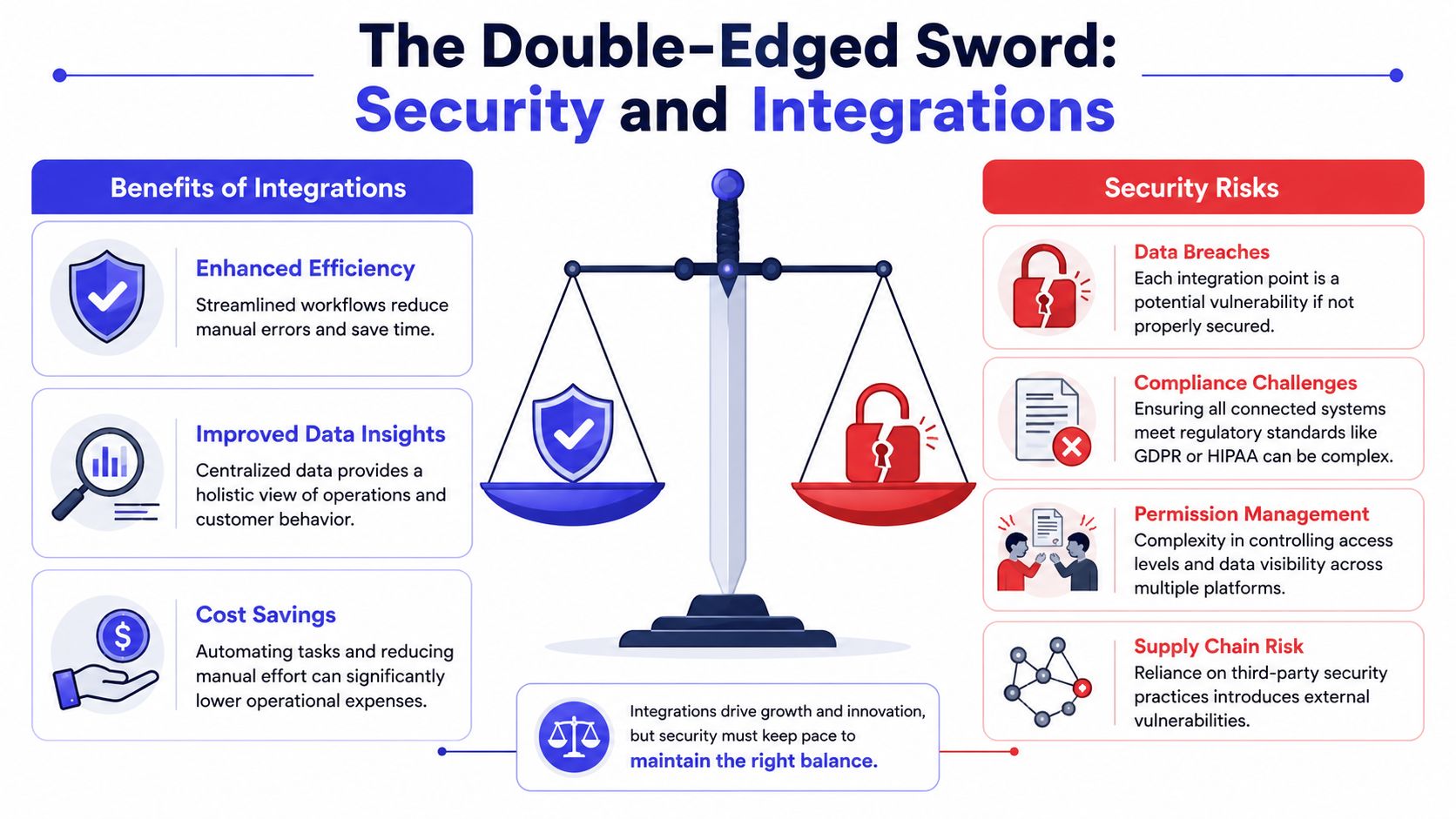
The main security risk of a third party integration is over-permissioning: an app granted broad access exposes all of it if the app or its token is compromised. Approve the narrowest scope that works, separate read from write access, name an owner, and review permissions after rollout, not only at setup.
That’s where support leaders need to get more involved. Not because they need to become security engineers, but because support systems often touch customer identity, billing status, internal notes, and account history. Those are sensitive data flows.
Flexibility can create silent risk
The biggest issue is usually over-permissioning. An app asks for broad access because it makes setup easier, and the team accepts the default because they want the integration working quickly.
That shortcut has a cost. Every scope you grant is access an attacker inherits if the connected app, or the token it holds, is ever compromised. This overview of third party integration benefits and risks covers the trade-off between flexibility and control in more depth.
Two terms help here. A scope is one named permission an app asks for, such as “read calendar free/busy” or “post to a channel”. A token is the key the app holds after you approve those scopes; whoever holds it can do everything the scopes allow.
For support teams, that risk often hides behind harmless-sounding prompts like full mailbox access, full CRM read-write permissions, or blanket access to customer records when the tool only needs a narrow set of fields.
A strong starting point is reviewing the vendor’s security approach for customer support systems and then asking how permissions are scoped in practice, not just in policy.
Obsidian Security’s short talk below shows how OAuth-connected SaaS apps become a backdoor when their permissions are too broad.
Questions support teams should ask before approving an integration
You don’t need a security questionnaire with fifty items. You do need a short list of uncomfortable questions.
- What exact data does it read: Ask for the field-level view if possible. “Customer data” is too vague to approve.
- What can it write back: Read access and write access carry different operational risks.
- Who owns the source of truth: If billing changes in one system, which platform is authoritative.
- Can permissions be narrowed: If a tool only needs ticket metadata, it shouldn’t get all conversations and account records.
- How is access reviewed: Someone should revisit permissions after rollout, not just at setup.
- What happens on failure: Failed syncs can create both service issues and compliance issues if data becomes inconsistent.
A worked example: a Slack integration that only posts alerts needs permission to write to specific channels, not to read every conversation in the workspace. A calendar integration for booking calls needs free/busy times, not the contents of every event.
The safest integration isn’t the one with the most controls on paper. It’s the one with the smallest practical blast radius.
Support teams should also map data flow in simple business terms. Customer identity comes in from the app. Subscription data comes from billing. Internal notes stay inside the support platform. Escalation events go to Slack. If your team can’t sketch the flow on a whiteboard, it’s probably too opaque to manage safely.
How Should a Support Team Plan Integrations?
Plan integrations around support friction, not vendor demos. Audit repeated agent tasks, then connect in this order: high-frequency lookups such as billing status, escalation workflows, customer handoffs such as scheduling, and reporting last. Give every integration a named owner and monitor failures so broken syncs do not surface through customer complaints. Teams get into trouble when they connect tools because the option exists, not because the workflow deserves it.
The goal is to reduce effort for agents and reduce friction for customers. If an integration doesn’t do one of those clearly, it probably belongs in the backlog, not in production.
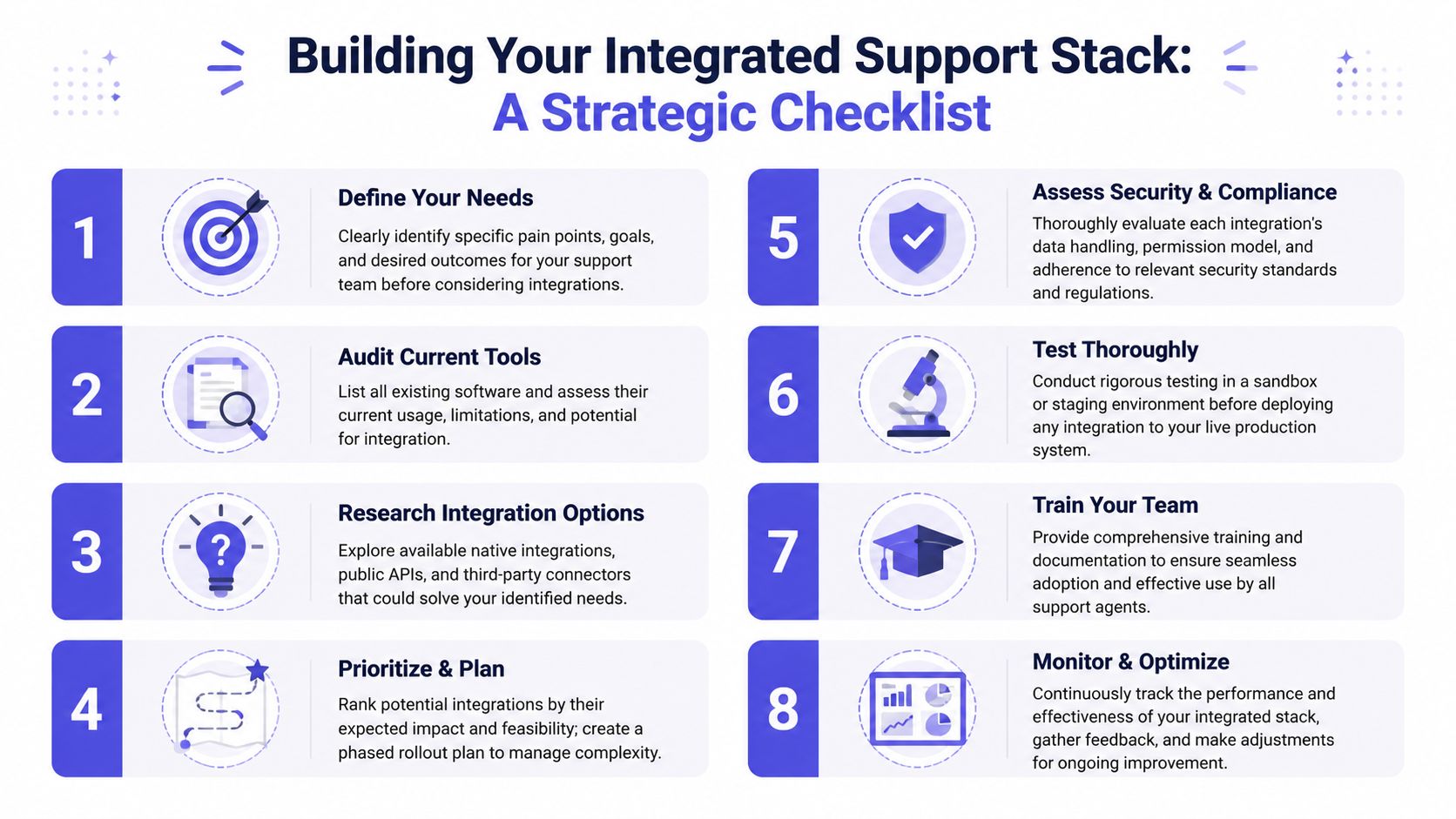
Start with support friction not vendor demos
Begin with a short audit of recurring support motions. Look for tasks agents repeat all day, especially the ones that require them to leave the inbox.
A practical priority order usually looks like this:
-
High-frequency lookups
Billing status, plan details, order history, and account ownership often belong first because agents use them constantly. -
Escalation workflows
If engineering or customer success needs fast visibility, connect the systems that move issues to the right people. -
Customer handoff moments
Scheduling, follow-ups, and identity verification are good candidates because they affect customer effort directly. -
Reporting and enrichment
Helpful, but usually not the first thing to solve if basic context is still fragmented.
Once you’ve identified the highest-friction workflows, plan the migration path. If you’re replacing a support tool, review the platform’s migration options for moving support history before you commit, especially if ticket history and conversation continuity matter to your team.
Build for maintenance on day one
Teams rarely fail at connecting tools. They fail at sustaining them.
Integration fatigue sets in quietly. Every new connection creates another moving part to monitor, update, and explain. Support feels the impact when syncs fail undetected, alerts stop routing, or a vendor changes its API and nobody notices until a customer reports an issue.
The operational basics matter more than they sound. This guide to SaaS integration best practices recommends queuing and retry mechanisms, versioned APIs with changelogs, and continuous monitoring with dashboards and alerts to keep integrations reliable.
Here’s the plain-English version of that advice:
- Use retries for fragile handoffs: If Slack or your CRM is temporarily unavailable, the event shouldn’t disappear.
- Track API versions: Vendor changes break assumptions. Versioning gives you room to test before support feels the fallout.
- Monitor health visibly: Don’t rely on users to discover a broken sync.
- Keep ownership explicit: Every integration should have a named owner, even if support and engineering share responsibility.
- Test realistic scenarios: New customer, canceled account, duplicate contact, missing field, delayed response. Those are the cases that reveal weak designs.
Reliable integrations are boring in the best way. Agents stop thinking about them because the data is simply there when they need it.
Migration work also benefits from restraint. Don’t port every old automation into the new stack by default. Some workflows exist only because the previous system was awkward. Rebuild the ones that still solve a real support problem.
What Do Third Party Integrations Look Like in Practice?
The integrations that matter most to support are Slack for escalations, Google Calendar for call handoffs, Shopify or billing data for account context, and imports when switching help desks. Each one removes a manual step at a specific support moment, such as copying a ticket to engineering. The examples below use Convot’s integrations because they are the ones we can describe exactly. Stripe, CRMs and Make appear elsewhere in this guide as general examples, so check the integrations page for what Convot connects to today.
Slack for escalation without inbox chaos
A customer reports a production issue that sounds like a bug. The support agent shouldn’t need to copy the ticket into Slack manually, summarize it from scratch, and then keep two conversations in sync.
A clean Slack integration sends the right alert to the right channel with enough context to act. That usually means the customer name, urgency, affected feature, and link back to the thread. In Convot, each app can route to its own Slack channel, and each channel picks its own events: new conversations, frustrated customers, AI answers marked unhelpful, escalations, feature requests and bookings. Engineering sees the issue sooner, and the agent stays anchored to the customer conversation instead of becoming a courier.
Google Calendar for faster handoffs to calls
Some issues are too messy for async support. Billing disputes, onboarding confusion, and setup blockers often move faster in a short call.
When scheduling is integrated into the conversation, the agent can offer a meeting without bouncing the customer to a separate back-and-forth thread, and the meeting record stays tied to the support interaction. In Convot, Google Calendar connects once through OAuth, busy times are hidden from the booking picker, and every confirmed booking gets a Google Meet link. We walk through the setup in how to book onboarding calls from support chat.
Shopify context inside the conversation
For software teams with commerce or app-related support, account value changes the handling. A customer’s plan, billing history and revenue often shape how quickly an issue should escalate and who should see it.
This is where inline account context matters. Rather than asking an agent to open Shopify or partner dashboards separately, a support system can surface revenue and subscription context next to the thread. Convot, for example, syncs a merchant’s plan, MRR and lifecycle events from the Shopify Partner API on a rolling 5-minute cadence and shows them beside each conversation, which is why support is a revenue function for Shopify apps and not only a cost line. The agent responds with the full customer picture already in view.
Migration imports when switching platforms
A team moving from Crisp, Zendesk, or another help desk usually worries about the same thing. Will we lose history, context, or continuity for customers who already have open issues?
A one-click import or guided migration changes that decision from a risky cutover into a controlled transition. Historical conversations remain searchable. Agents keep the backstory. Customers don’t have to repeat themselves because the stack changed behind the scenes. Convot imports from Crisp in one click, and moves from Intercom, Zendesk or Freshdesk are a free migration done with the founder. Both are covered in migrating from Crisp step by step and moving from Intercom or Zendesk without losing history.
The practical win isn’t just faster setup. It’s preserving support memory while you modernize the system around it.
FAQ
What are third party integrations in a help desk?
Third party integrations are connections between a help desk and tools built by other vendors, such as Stripe, Slack, a CRM or Google Calendar. They let systems share approved data, so agents see billing status, plan details and account history inside the ticket instead of switching tabs.
Which integration type should a small support team choose first?
Native integrations take little setup and need the least maintenance, so they suit a small team’s standard workflows. Move to an API integration only when a workflow is specific, to webhooks when speed matters more than depth, and to middleware when several tools must connect without custom code.
How do you keep third party integrations secure?
Grant the narrowest permissions that work, separate read access from write access, and ask which exact fields an app can see. Assign a named owner, review access after rollout, and monitor for failed syncs. The safest integration is the one with the smallest practical blast radius.
Why do third party integrations break over time?
Most integrations fail from neglect, not setup. Vendors change APIs, tokens expire, and syncs fail without alerts. Prevent this with retry queues, tracked API versions, visible health monitoring, a named owner for each connection, and tests for edge cases like canceled accounts and duplicate contacts.
Can you keep ticket history when switching help desks?
Ticket history survives a switch when the import carries full conversations and not only contacts. Ask the new vendor which objects move: conversations, notes, tags and customer records. On Convot, Crisp imports are one-click and Intercom, Zendesk and Freshdesk moves are a free migration done with the founder.
From Tool Sprawl to a Unified Support Hub
The real value of third party integrations is that your team stops working as the connection point between disconnected tools. The strongest setups connect the systems agents use every day, limit permissions aggressively, and monitor failures instead of hearing about them from customers. Some teams choose one support hub, where chat, help desk, self-serve content, scheduling, revenue context and core integrations live in one place; our comparison of the best help desk software for small teams looks at which tools get closest to that.
If you’re rethinking a fragmented support stack, Convot is one option to review. It combines help desk, live chat, help center, scheduling, revenue context and an AI agent in one platform, with flat pricing for the whole team.
Written by Tarang Agarwal, founder of Convot, a help desk for small software teams. Updated October 2026.
Powered by the Outrank tool
Revenue-aware support for Shopify app teams.
Live chat, help center, and every merchant's MRR, plan, and LTV beside the conversation. Free under $1k MRR.
Start free